Users
Inviting Users
The Dashboard can be accessed by invitation only. The dashboard manager will invite pre-approved users to register by sending them a registration link (via email or other mediums). Invitation links are one-time, specific to that email address and will expire after a set number of hours. Once a user registers, they will be able to sign in and access the Dashboard.
Sending an Invitation
- Navigate to the Users menu under the Access Control section of the management dropdown menu. (If you do not see the management menu on your nav bar, it means your account does not have the required permissions to access it.)
- Once on the user management page, switch to the Invitations tab and click the Invite New User button (usually top right).
- Fill in details:
- Email Address: The user's valid email.
- Role: Select the appropriate role (e.g., Viewer, Manager). It is also not a requirement at this point. Can be assigned later.
- Click Invite.
The user will receive an email with a unique registration link.
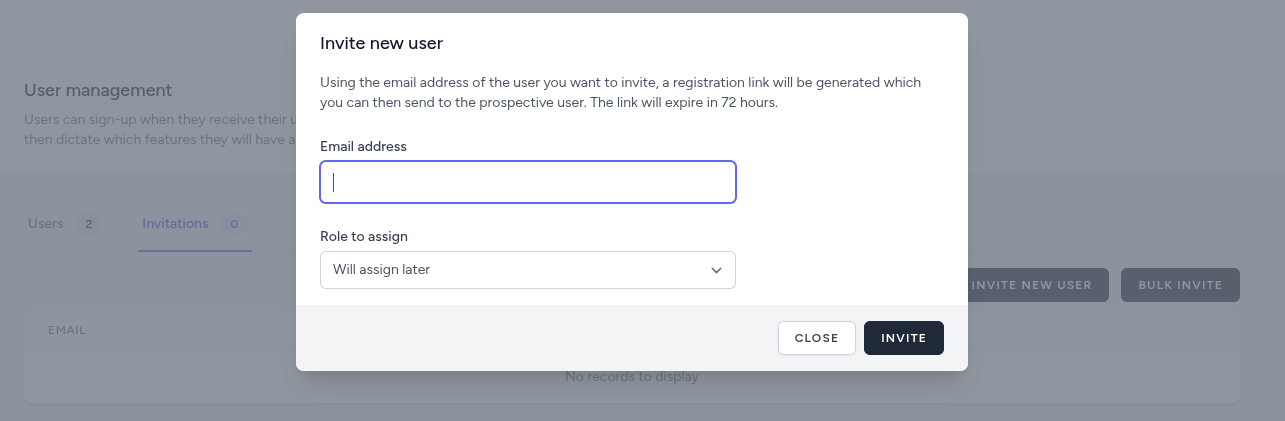
If you have to invite a large number of users, you can use the Bulk Invite button to upload a list of users to invite (xlsx or csv file containing the email addresses and corrosponding roles).
Managing Users
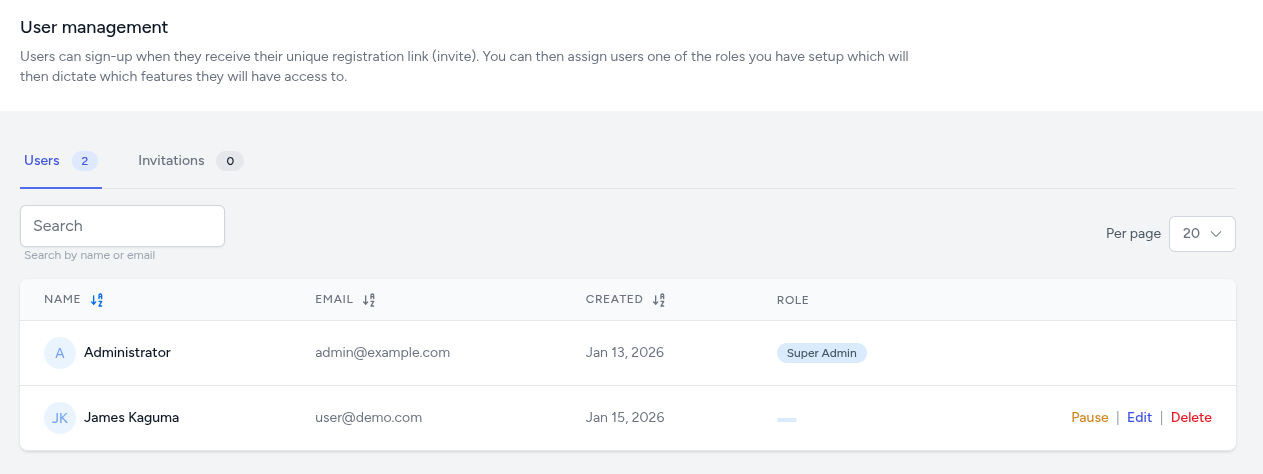
As a Manager, you can edit, suspend, delete, assign roles to, or geographically restrict existing user accounts.
Editing a User
- Click the Edit link next to their name.
- You can update:
- Role: Change their assigned role.
- Area restriction: Change their geographic restriction.
- Click Update.
Suspending a User
If you suspect a security breach or a user leaves the project:
- Click the Pause link next to their name.
- The user will no longer be able to log in, but their data history is preserved and now the link will display the text Resume meaning that the manager can reinstate their access to the dashboard at a later time, if deemed necessary.
Deleting a User
Deleting a user is permanent and can not be reversed.
- Click the Delete button next to the user.
- Confirm the action in the pop-up warning.